
Power Automate Desktop: Sending Emails with Multiple Attachments Made Easy


Sending multiple file attachments through email is a common business requirement—whether it’s invoices, reports, or supporting documents. In this article, you’ll learn how to use Power Automate Desktop to automatically collect multiple files and send them in a single email using a simple, repeatable automation flow. This guide focuses on practical concepts that can be applied to real-world scenarios with minimal complexity.
Step 1: Get Files from a Folder
Go to the Actions panel, search for Folder, and select the Get files in folder action.Drag this action onto the flow designer canvas.
In the Folder field, click the folder icon on the right side. This will open the file explorer on your device. Navigate to and select the folder that contains the files you want to send as email attachments.
File filter:Leave it as to select all files in the folder.If you want only specific file types, use extensions such as:.pdf, .xlsx, .docx
Include subfolders:Enable this option if your attachments are stored inside multiple subfolders and you want to include those files as well.
Once configured, click Save to store the action.

Step 2: Create a List to Store Attachments
Go to the Actions panel, expand Variables, and select the Create new list action.Drag this action onto the flow designer canvas.
Set the Variable name as myAttachmentList.(This list will be used to store multiple file paths for email attachments.)
💡 You can name the variable anything you like, but using a meaningful name such as myAttachmentList helps keep the flow easy to understand and maintain.
Once done, click Save and move to the next step.

Step 3: Create a Loop to Iterate Through Files
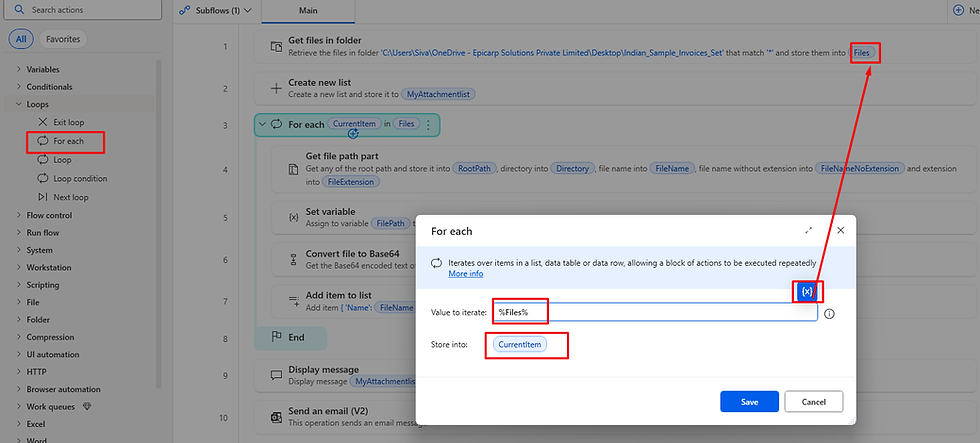
Go to the Actions panel, expand Loops, and select the For Each loop.Drag the For Each action onto the flow designer canvas.
In the Value to iterate field, select the Files variable generated by the Get files in folder action.This variable contains the list of all files retrieved from the selected folder.
Once configured, the loop will automatically create a CurrentItem variable.This variable represents one file at a time during each iteration.
🔁 Any actions placed inside this loop will run once for each file in the folder, allowing you to process multiple attachments dynamically.
Click Save and continue with the next step.
Step 4: Get File Parts Inside the Loop
Inside the For Each loop, go to the Actions panel, expand File, and select the Get file parts action.Drag this action inside the loop on the flow designer canvas.
In the File path field, click the variable icon and select the CurrentItem variable generated by the loop.This ensures the action processes one file at a time during each iteration.
The Get file parts action extracts important file details such as:
Root
Directory
FileName
FileExtension
FileNameNoExtenion
These file parts will be used in the next steps to prepare and attach each file to the email.
Click Save and proceed to the next step.

Step 5: Convert the File to Base64
Inside the For Each loop, go to the Actions panel, expand File, and select the Convert file to Base64 action.Drag this action inside the loop on the flow designer canvas.
In the File path field, click the variable icon on the right side and select the CurrentItem variable, as shown in the image.
Once configured, click Save.
This action converts the file into Base64 format, which is required when sending attachments using email actions in Power Automate Desktop.

Step 6: Create Attachment Object and Add It to the List
Inside the For Each loop, this is the final step where each file is prepared as an attachment and added to the list created earlier (myAttachmentList).
Create an object with the following key–value pairs:
Name → Map the File name value from the Get file parts action
ContentBytes → Map the Base64Text output from the Convert file to Base64 action
This object represents one email attachment.
Next, use the Add item to list action and add this object to the myAttachmentList variable.
As the loop runs: Each file is processed one by one File name is extracted File content is converted to Base64 A new attachment object is created The object is added to the attachment list
If the folder contains 10 files, the loop will create 10 attachment objects and store them in myAttachmentList.
This makes it easy to use one single variable in the email action to send all attachments at once.

Step 7: Send the Email with Multiple Attachments
Now that the flow is ready, let’s send the email with all attachments.
Go to the Actions panel, search for the Office 365 Outlook connector, and select the Send an email action.Drag this action onto the flow designer canvas (outside the loop).
Fill in the required fields:
To – Recipient email address
Subject – Email subject
Body – Email message content
Next, click Advanced options, scroll down to the Attachments section, and map the myAttachmentList variable to the Attachments field, as shown in the image.
Click Save.
Your flow is now complete. Run the automation to test it—an email will be sent with all files from the selected folder attached in a single email.

Final Step: Test the Flow
To test the automation, go to the top of the flow designer and click the Run button.
The flow will start executing all the configured steps. Once the run is successful, you should receive an email with all the selected files attached, as shown in the image below.
✅ Flow tested successfully✅ Email delivered with multiple attachments
Your Power Automate Desktop flow is now fully functional and ready for real-world use.

If you found this blog article helpful, please like and share it with others who may benefit from it. Feel free to drop a comment if you need any support or clarification—I’ll be happy to help.


Comments