
Automate Daily Uncontacted Leads Report from SharePoint Using Power Automate

Updated: Dec 23, 2025
In many organizations, sales and marketing teams capture customer leads in a SharePoint list as part of their daily operations. However, tracking which leads have not yet been contacted often becomes a manual and time-consuming task.
In this scenario, the customer wants to automate a daily report that identifies all uncontacted leads stored in SharePoint and sends the report as a CSV file via email to the internal team.
Using Microsoft Power Automate, we can build a scheduled flow that:
Runs automatically every day
Filters SharePoint leads that are not contacted
Generates a CSV report from the filtered data
Emails the report to the required team members
This automation ensures better lead visibility, faster follow-ups, and zero manual reporting effort, helping teams focus more on conversions rather than administration.
Step 1: Create a Scheduled Flow
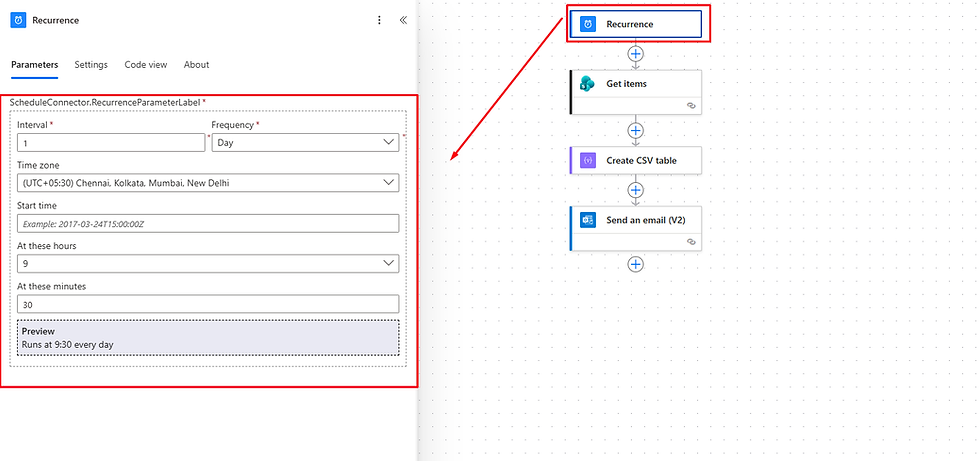
To begin, create a Scheduled cloud flow in Microsoft Power Automate so the report runs automatically every day.
Configuration details:
Trigger: Recurrence
Frequency: Day
Interval: 1 (runs once every day)
Time zone: Select your local time zone (for example, India Standard Time)
At these hours: Specify the hour when the report should run
At these minutes: Specify the exact minute for execution
You are free to adjust the time and schedule based on your business requirement—for example, early morning before the sales team starts their day.
Once this trigger is configured, the flow will automatically run every day at the specified time without any manual intervention.
Step 2: Get Uncontacted Leads from SharePoint (Using Filter Query)
Next, click the ➕ (New step) button and add the SharePoint action:
✅ Action: SharePoint → Get items
Fill in the required fields:
Site Address: Select your SharePoint site
List Name: Select your Leads list
Use Filter Query to retrieve only “Not Contacted” leads
Under Advanced options, use the Filter Query to control which records should be returned.
In this scenario:
If Contacted = Yes → the lead has already been contacted
If Contacted is blank or not Yes → the lead is still not contacted
To fetch only the non-contacted leads, use the following filter query:
Contacted ne 'Yes'
This query returns all leads where the Contacted field is either blank or has a value other than Yes.
🔧 Note: You can always adjust or modify the filter query based on your business requirement.For example, you may filter by:
Lead status
Created date
Assigned sales owner
Priority or source
This flexibility allows you to fine-tune the data that appears in your daily CSV report.

Step 3: Create the CSV Table (Data Operations)
Now that you have the filtered SharePoint data, the next step is to convert it into a CSV file that can be shared with the team.
Click the ➕ (New step) button and select: Built-in → Data Operations → Create CSV table
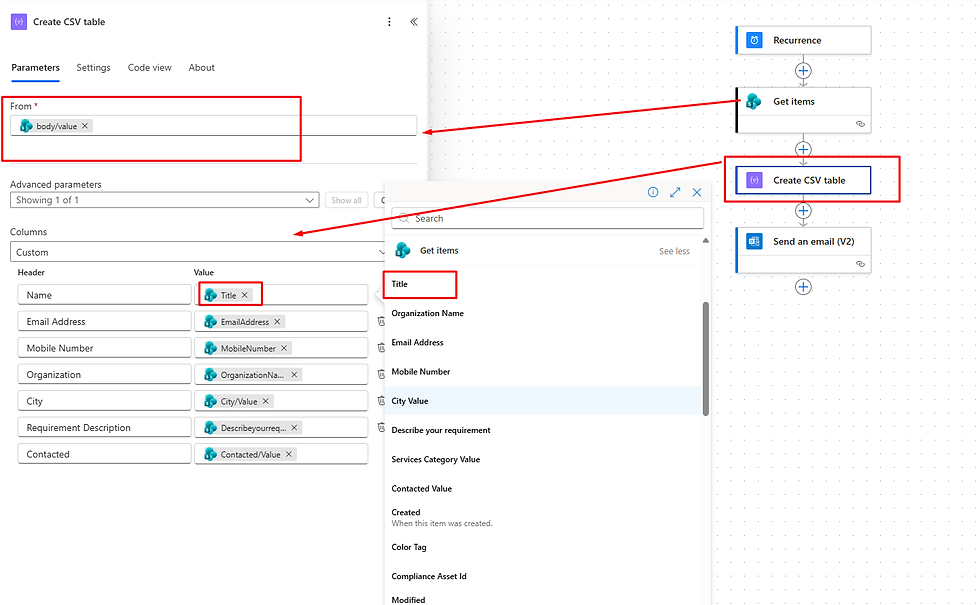
Configure the Create CSV table action
From: Select the output of the Get items action (value)
Under Advanced parameters, you will see two options:
Automatic
Custom
👉 It is always recommended to choose Custom columns.
Why Custom columns?
You can control exactly which fields appear in the CSV
Avoids unnecessary or internal SharePoint columns
Makes the report clean and easy to read for recipients
Define custom headers and values
Header name: Enter a user-friendly column name (for example: Lead Name, Email, Phone Number, Created Date)
Value: Click on Dynamic content and select the corresponding SharePoint field
You also have full flexibility to rename headers so they suit your business or reporting terminology. Only include the columns that matter to the team receiving the report.
Step 4: Send the Report via Email
In the final step, we’ll email the generated CSV report to the team.
Click the ➕ (New step) button and select the email connector. In this example, we are using Office 365 Outlook.
Choose the action:✅ Send an email (V2)
Configure the email parameters
To: Enter the email address(es) of the recipients (you can add multiple emails separated by semicolons)
Subject: Provide a meaningful subject. You can also include a timestamp if required. Example:
Daily Uncontacted Leads Report - @{formatDateTime(utcNow(),'ddd-dd-MMM-yyyy')}Body: Write a short message explaining the purpose of the report, for example:
Please find attached the daily report of leads that are yet to be contacted.
Attach the CSV file (Important Step)
Expand Advanced parameters
Click Add new item
Configure the attachment:
Attachment Name: Enter a user-friendly name, for example:
Daily_Uncontacted_Leads_Report.csv
⚠️ Make sure the file name ends with .csv
Attachment Content: From Dynamic content, select the output of the Create CSV table action

Once saved, your flow will automatically
Once the flow runs successfully, the team receives a daily email with a CSV attachment containing only the uncontacted leads.


Comments